
Before you proceed — a word from us
We're genuinely sorry to see you go. Healthera exists to help pharmacies like yours grow, run more efficiently, and serve patients better. If something hasn't been working — whether that's a service, a feature, or our support — we'd really like the chance to fix it before you make a final decision.
Want to talk first? Contact your Account Manager or reach us at success@healthera.co.uk — we're here to help.
1. Overview
This guide is designed to help your pharmacy navigate the offboarding process from Healthera clearly and without disruption. It covers business continuity planning, what happens to each platform, how to handle patient communications, and what data you will receive.
We want to be transparent about every step. Offboarding involves more moving parts than most pharmacies anticipate — particularly around patients who may be mid-journey or have scheduled future orders. This guide addresses those points directly so nothing is missed.
2. Business Continuity Planning
Before activating any offboarding steps, your team needs a clear plan for how you will continue to receive and manage business from the day your Healthera services go dark. This section outlines the three areas that most commonly catch pharmacies off-guard.
2.1 Prescription Orders
Before agreeing on an offboarding date, review your current order volumes through the Connect dashboard. Consider:
- How many prescriptions are processed weekly through the Healthera platform?
- What channel will you direct patients to once the platform is deactivated?
- Do you have an alternative digital channel (e.g. NHS App, direct phone) ready to absorb this volume from day one?
Once an offboarding date has been agreed, this is the area most commonly overlooked. Prescription management has two distinct groups that both require attention:
1) Active and Upcoming Orders
Log in to the Connect dashboard and review all upcoming prescription orders before your deactivation date. You must ensure:
- All in-progress orders are fulfilled or communicated to the patient
- No outstanding orders will be left in a pending state on deactivation day
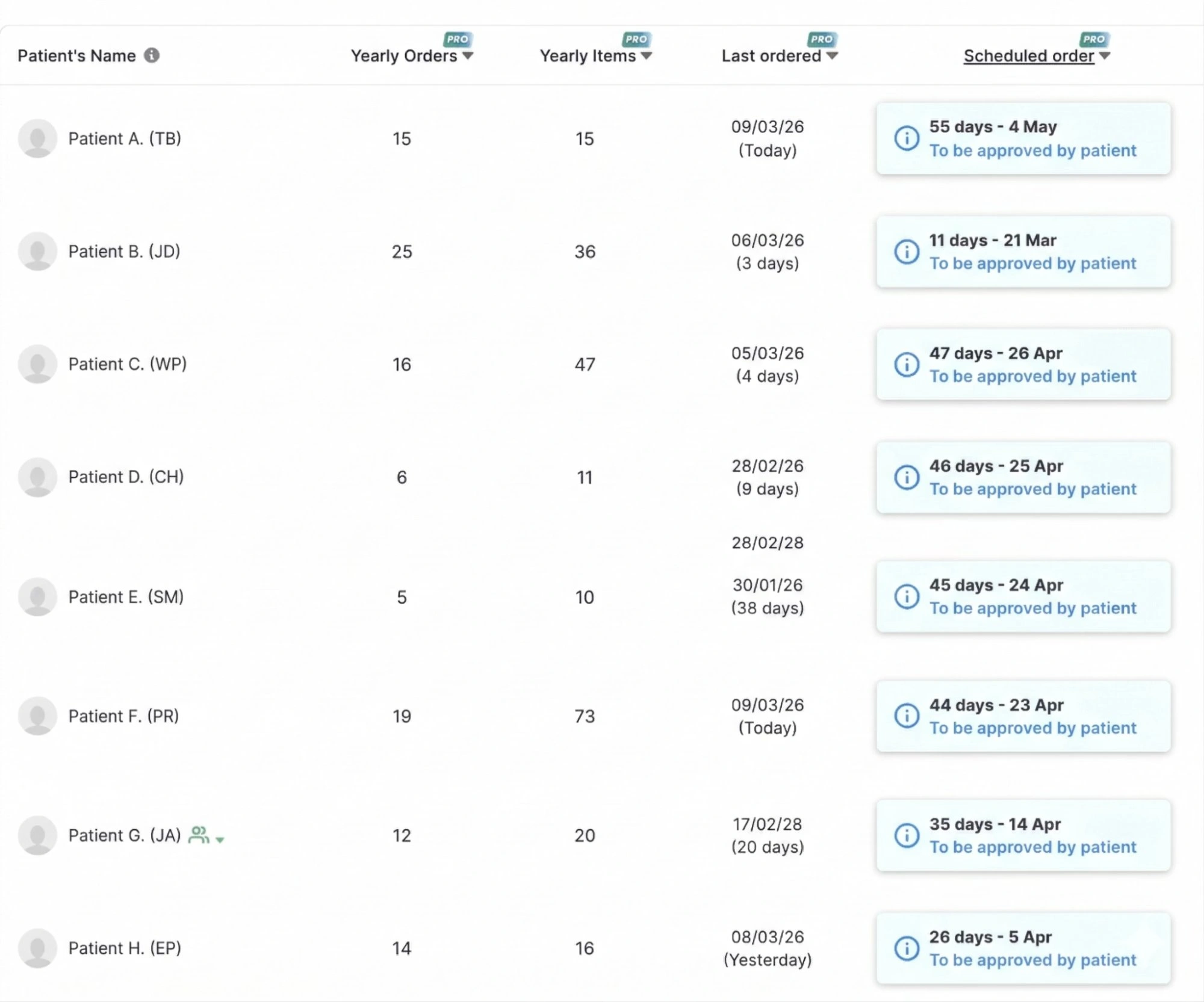
2) Scheduled / Repeat Orders — Critical
To manage scheduled orders:
- Go to the Patients tab
- Order by the Scheduled Order column to see upcoming orders
- Contact each patient individually to inform them of the change and help them re-nominate a pharmacy or alternative process
- Allow sufficient lead time — we recommend at least four weeks before your deactivation date to resolve all scheduled order relationships
2.2 Service Bookings
If your pharmacy offers bookable services (e.g. flu jabs, travel health, consultations), you need to ensure continuity of booking capacity. Before deactivating:
- Block out all dates in your Healthera services calendar beyond your offboarding date
- Turn off the services booking feature before deactivation to prevent new bookings being made
- Check your Services Agenda and Calendar for any in-flight bookings and ensure these are migrated to an alternative booking system or contacted directly
2.3 Channels for Receiving New Business
Healthera provides multiple routes through which patients discover and interact with your pharmacy. On deactivation, these routes will no longer be active. Make sure you have alternatives in place for:
| Channel | What to arrange before offboarding |
|---|---|
| Healthera App | Patients will lose access to your pharmacy listing. Consider an NHS App listing or Google Business profile. |
| Healthera Plus/ Healthera Pro Website | You will lose access to the website. |
| Bespoke Website | Decide whether to migrate the site or let it lapse. Arrange for redirection if applicable. See Section 3.3 for WordPress transfer details. |
| Bespoke White-Label App | Arrange for redirection using a banner before deactivation, share contact details for Healthera to display. |
3. What Happens to Each Platform
On your agreed deactivation date, the following platforms will be affected. This section explains exactly what happens to each and what actions you should take in advance.
3.1 Healthera App
For pharmacies visible on the main Healthera app:
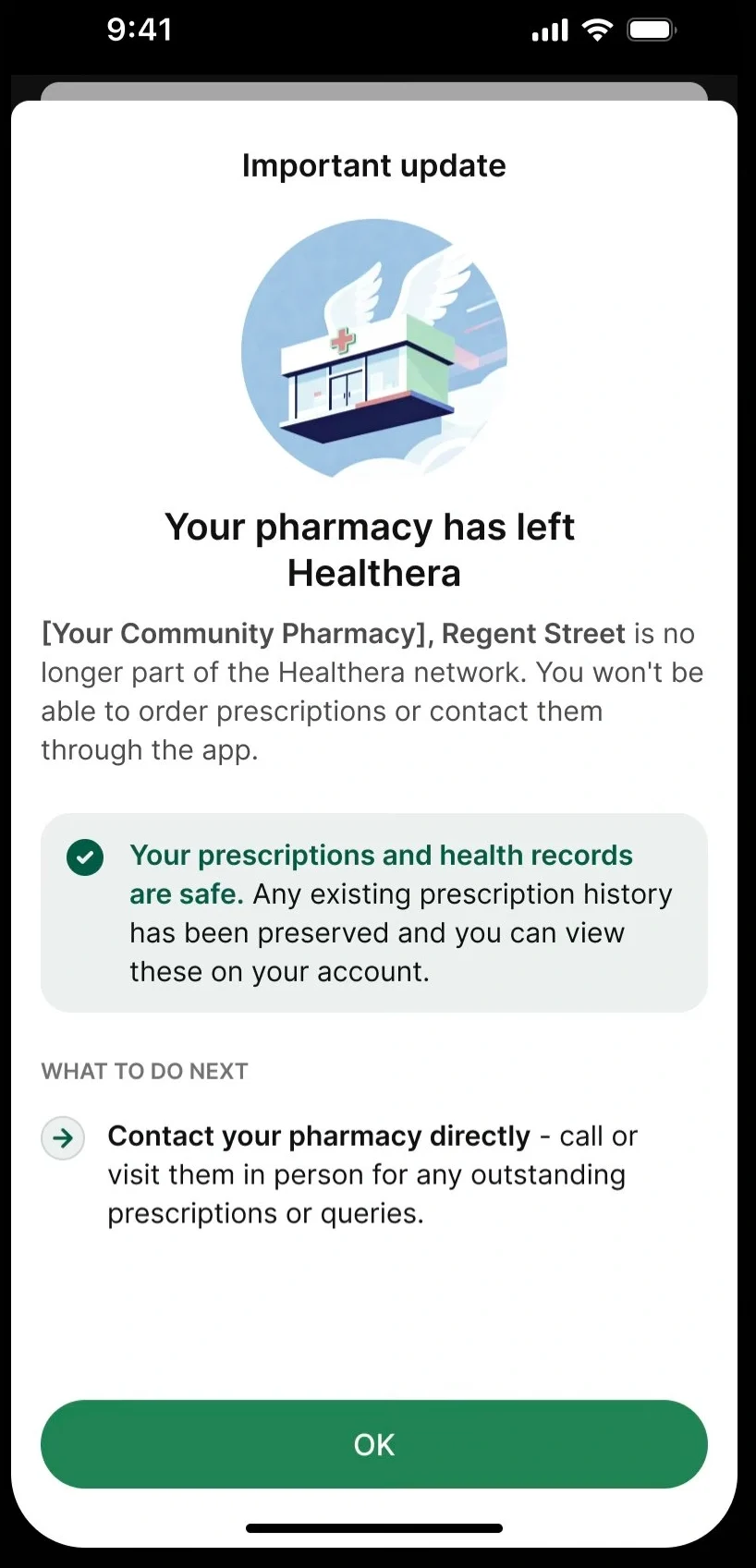
- Your pharmacy listing will be removed from patient search results
- Patients who have previously used your listing will see a notification popup informing them that you are no longer available through Healthera
- Patients will still be able to see their prescriptions record and manage their medication, and access their account as usual.
- A Patient’s nominated pharmacy is only changed on request from the patient.
3.2 Plus/Pro Website
If we built a Healthera-powered website for your pharmacy, please note:
What happens to your website:
- Your website is hosted on Healthera's infrastructure and cannot be transferred to another provider
- Once deactivated, the site will no longer be accessible to patients
- Any SEO rankings, Google Business Profile integration, and online prescription ordering will cease immediately
Your responsibility:
- Ensure you have an alternative website live BEFORE we deactivate your Healthera site
- Update your Google Business Profile, social media, and any marketing materials with your new website URL
- Inform patients about the change, especially those who regularly order online
- Explicitly confirm in writing when it is safe to deactivate the site
Important: We will NOT deactivate your website without your explicit written instruction. You are responsible for ensuring patients have an alternative way to access your services before deactivation.
3.3 Bespoke Website
WordPress Ownership Transfer
If Healthera built and hosts a bespoke pharmacy website for you (not a plus/pro website), you have two options at the point of offboarding:
- Transfer the site to your own hosting provider — Healthera will provide the WordPress export files and access credentials required. You will need to arrange your own hosting, domain management, and ongoing technical maintenance.
- Let the site lapse — if you do not wish to maintain the site, it will be taken offline on your deactivation date.
If transferring, you should arrange this at least two weeks before your deactivation date to avoid any gap in your online presence.
What Will and Won't Work After Transfer
| Will continue to work | Will stop working |
|---|---|
| Static pages (About, Contact, Opening Hours) | Prescription ordering journeys |
| Blog content and SEO pages | Services booking journeys |
| Contact forms (if hosted independently) | Healthera-powered banners and pop-ups |
| Your domain name (if you control the DNS) | Patient account login functionality |
We strongly recommend adding a visible banner to your website ahead of the deactivation date to inform patients of any changes to how they can reach you.
3.4 White-Label App (WL App)
If your pharmacy has a Healthera white-label branded app, the following will happen on your deactivation date:
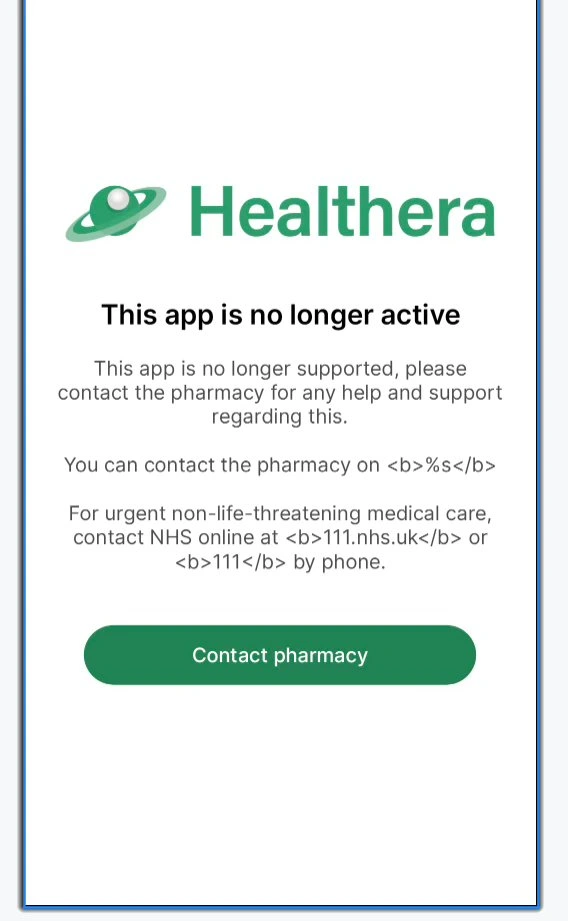
- A closure banner will be displayed to patients when they open the app
- Your pharmacy phone number will be shown prominently so patients can contact you directly
- The app will be deactivated — patients will no longer be able to place orders or book services through it
4. Informing Your Patients
Proactive patient communication is both a professional and regulatory responsibility. Healthera can support you with some of this, but the primary obligation rests with your pharmacy as the data controller.
4.1 Who You Need to Contact
At a minimum, we recommend you proactively communicate with:
- All patients who have an active account linked to your pharmacy
- Patients with scheduled repeat prescription orders (see Section 2.1)
- Patients with future service bookings (see Section 2.2)
- Patients who primarily use your white-label app or bespoke website to interact with you
4.2 What to Communicate
Your communications should cover:
- The date from which the platform(s) will no longer be available
- How they can continue to order prescriptions with you (or an alternative pharmacy)
- An alternative contact number or booking method
- Any change to their nominated pharmacy, if applicable
Keep communications clear and empathetic — many of your patients will be elderly or managing long-term conditions, and a disruption to their prescription process can have real consequences.
4.3 How to Communicate
We recommend a multi-pronged approach to ensure all patients are reached. Contact methods include:
- Sending a Broadcast message to all patients from the Healthera Connect platform
- Messaging patients directly using Healthera Connect (i.e. from the Patients page)
- Informing patients in-store directly or through notices
- Phoning patients
- Emailing patients
- Updating your website and WL app, if applicable, with a banner notification
5. Your Patient Data Export
5.1 Standard Data Export
As part of the offboarding process, Healthera will provide a standard data export for all patients for whom your pharmacy is the registered data controller. You will receive this export via a secure, view-only Google Drive link shared with the key stakeholders you designate. Your Account Manager will be able to retrieve and share this data with you securely.
The standard export includes:
- Email addresses
- Demographic data
- Nominated pharmacy status
- Order history summary
5.2 Understanding Data Controllership
Not all patient data in the Healthera platform is data you control. The distinction between data for which your pharmacy is the controller and data held by Healthera as controller is important and affects what you are entitled to receive in your export.
Please find here the relevant help article explaining this distinction in detail. We recommend reviewing this before your offboarding date to avoid any confusion about what your export will and will not contain.
5.4 Bespoke Data Reports
6. Offboarding Checklist
Use this checklist to ensure nothing is missed before your deactivation date. We recommend starting this process at least four weeks in advance.
Three Months Before
- Confirm your intended offboarding date in writing with your Account Manager
- Review prescription order volumes via the Connect dashboard — connectme.healthera.co.uk/dashboard
- Review all active service bookings beyond your intended deactivation date
- Identify all patients with scheduled repeat orders
- Decide on your post-offboarding channels for prescriptions, bookings, and new patient acquisition
Six Weeks Before
- Begin contacting patients with scheduled repeat orders
- Contact patients with future service bookings to rearrange or cancel
- Add closure banners to your white-label app and bespoke website
- Confirm your active phone number is correct in the Connect dashboard
- Request your patient data export and confirm stakeholder Google Drive access
Two Weeks Before
- Block out all future dates in your services calendar
- Turn off services booking feature
- Confirm all upcoming prescription orders are resolved or assigned
- Verify patient data export has been received and downloaded by your team
- Send final patient communication with alternative contact details
- Begin WordPress site transfer process if applicable
On Deactivation Day
- Confirm deactivation with your Healthera Account Manager
- Verify all platforms have been correctly deactivated
- Ensure your alternative prescription and booking channels are live and functioning
7. Key Contacts and Resources
| Resource | Details |
|---|---|
| Connect Dashboard | https://connectme.healthera.co.uk/dashboard |
| Account Manager | Contact directly or ask at success@healthera.co.uk |
| General Enquiries | success@healthera.co.uk |
| Data Controllership Article | https://healthera.co.uk/patient-data-communication-policy/ |
| PAM (Patient Access Management) | Contact your Account Manager |
